
The Comments dashboard brings together written feedback candidates leave across your surveys. Use the insights at the top to see the overall picture, then explore individual comments below.
Insights at a glance
The dashboard includes three widgets to help you understand feedback quickly:

- Comments: the total number of comments in your current view.
-
Sentiment Distribution: A donut chart showing the proportion of comments classified as Positive, Neutral or Negative.
-
Sentiment Distribution per Topic: A bar chart showing sentiment across topics.
Hover over a chart segment or bar to see the number of comments it represents.
Click a topic in the topic chart to filter the comments list below and focus on feedback about that topic.
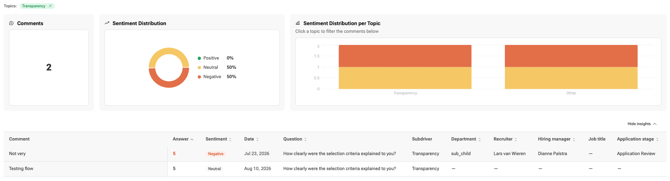
Select Hide insights to collapse the charts and give yourself more room to read comments. Select Show insights to display them again.

How sentiment and topics are assigned
- Sentiment: Comments are classified as Positive, Neutral or Negative. When AI analysis is enabled, a Starred-hosted AI model analyzes the comment text. Mixed or unclear feedback is classified as Neutral. Without AI analysis, sentiment is determined using a simpler model or the associated rating.
- Topics: Comments linked to framework questions inherit the question’s subdriver, such as Transparency or Brand. Other comments are assigned a topic by AI.
- Other: A comment appears under Other when no topic has been assigned yet.
Comments are analyzed once a day, around midday CET. Until analysis is complete, new comments may show a dash (—) for sentiment and Other for topic.
Read the comments table
The table lists individual written responses, with the newest comments first. Comments load 50 at a time as you scroll, and longer comments can be expanded using Show more.
|
Column |
What it shows |
|---|---|
|
Comment |
The candidate's written feedback. |
|
Answer |
The associated rating or answer, when available. |
|
Sentiment |
The comment’s sentiment classification. |
|
Date |
When the feedback was submitted. |
|
Question |
The survey question the comment relates to |
|
Subdriver |
The topic associated with the comment. |
|
Application stage |
The candidate’s stage in the hiring process. |
|
Any other fields |
You can select the fields you want to display in this table by updating the "Columns" list at the top of the dashboard. More on this below |
Comments appear in the language in which they were written. They aren’t automatically translated.
The dashboard includes comments from rating and NPS questions, discovery question answers, and general comments. Ratings submitted without written feedback don’t appear in this table, but they still contribute to cNPS and other dashboard scores.
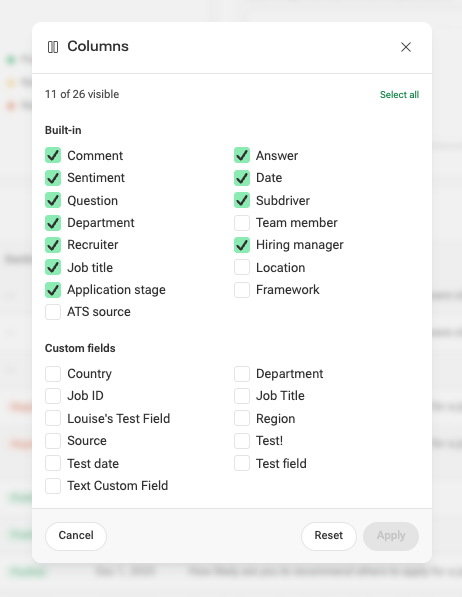
Choose which columns to show
Customize the table to focus on the information that matters to you.
- Select Columns.
- Select the checkboxes for the columns you want to display.
- Select Apply to update the table.
Use Select all to display all available columns, Reset to restore the default selection, or the visible column count to see how many columns are selected.
Filter your comments
Use filters to focus on the feedback most relevant to your analysis.
Select the data to include
Use Select included data to choose the company, teams, recruiters, hiring managers or other data covered by your access permissions. This works the same way as on the Candidate Experience dashboard.
Choose a date range
Use the date selector, which defaults to All time, to narrow comments to a specific period.
Apply filters
Open Filters to filter comments by:
- Department
- Application source
- Application stage
- Sentiment
- Source: Framework question, Discovery question or General comment
You can also click a topic in the Sentiment Distribution per Topic chart to filter by topic.
Location, job and custom-field filters, as well as comment search, aren’t currently available.
Use saved filters
You can apply saved filters if you have access to them. On the Comments dashboard, only the Department, Application source and Application stage criteria carry over from a saved filter.
Export comments
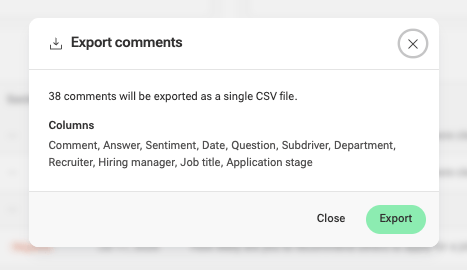
- Select Export at the top of the page.
- Check the summary. It shows how many comments will be exported and which columns will be included.
- Select Export to download a single CSV file.
Tips for analyzing comments
-
Start with the sentiment charts, then click a topic with a lot of negative comments to read what candidates are saying.
-
Add relevant columns: Include Recruiter, Hiring manager or Application stage to help put feedback into context.
-
Export a focused set: Apply filters and select only the columns you need before exporting. For instance, you can add the Recruiter or Hiring manager column and export the comments to share feedback with the right people.